Sign In to the Wildfire Commons and Create an Expert Network Profile
To get access to the Wildfire Commons, you must register first.
1 - Go to the Wildfire Commons
2 - On the top right of your screen, click on Log In/Register.
3 - Click on the CI Logon logo.
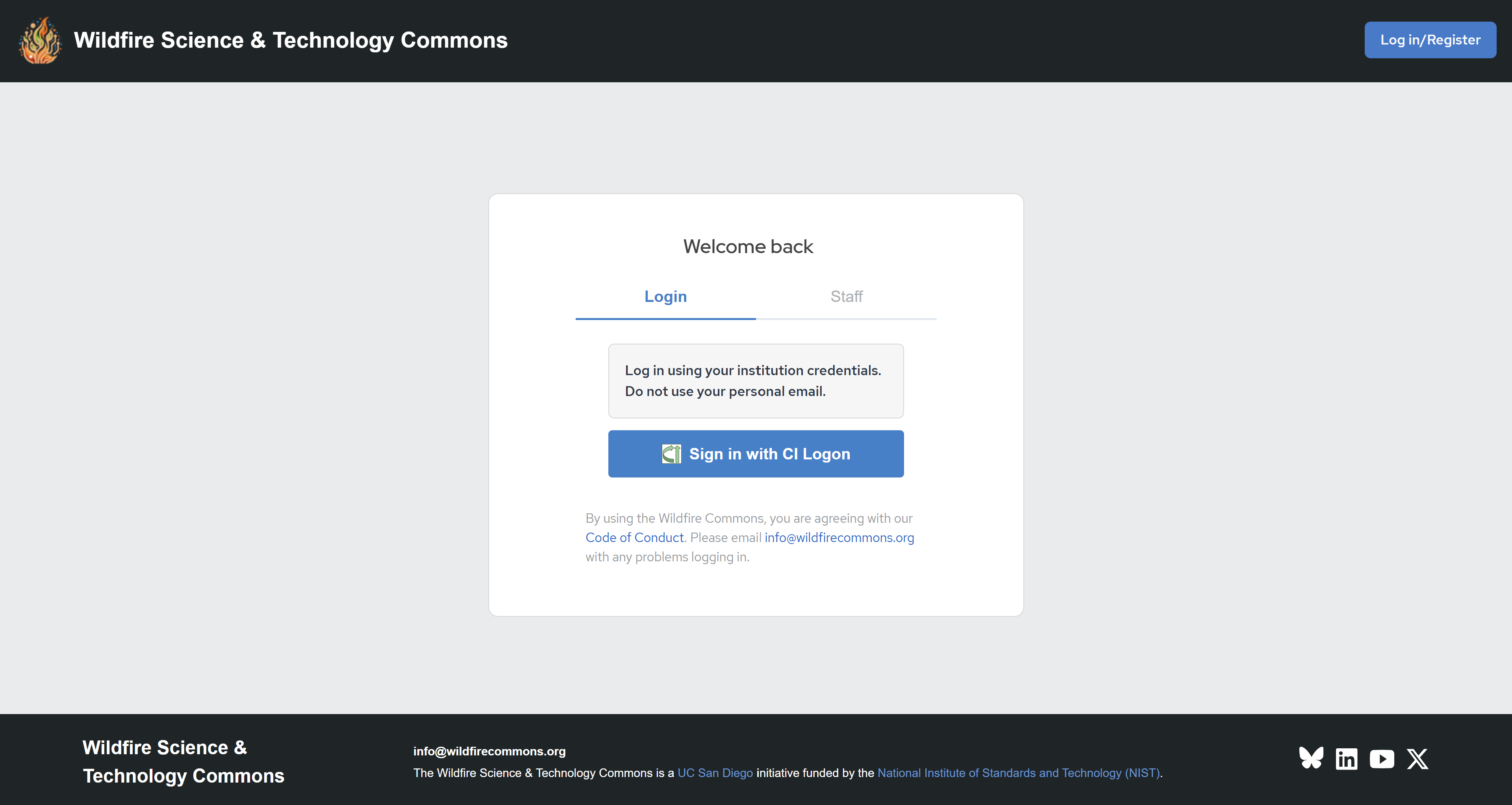
4 - Select your institution and click on Log On. You will be prompted to your institution's log in system. Use your institutional credentials.
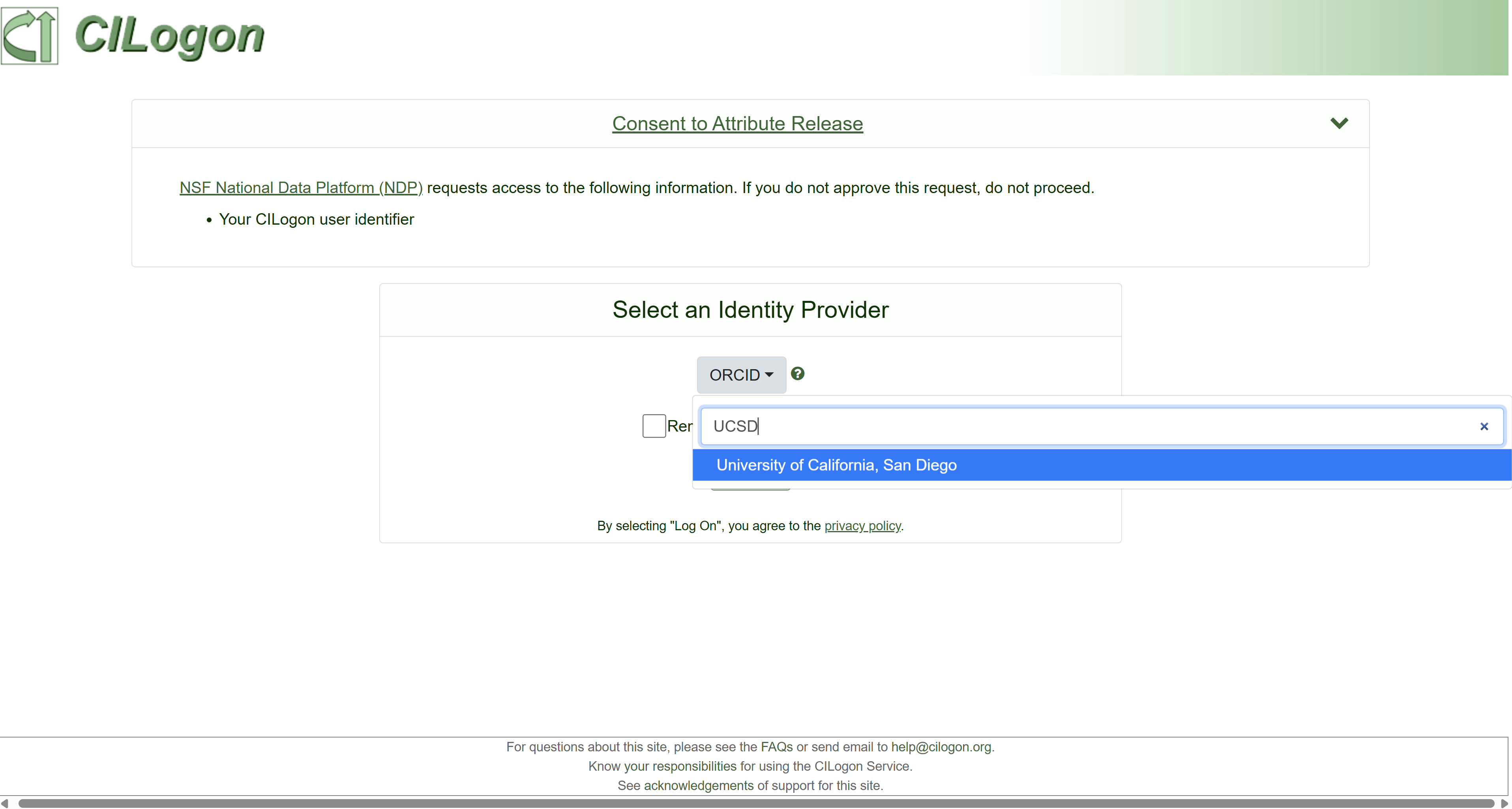
Alternatively, if your institution is not part of CI Logon, you can select ORCID
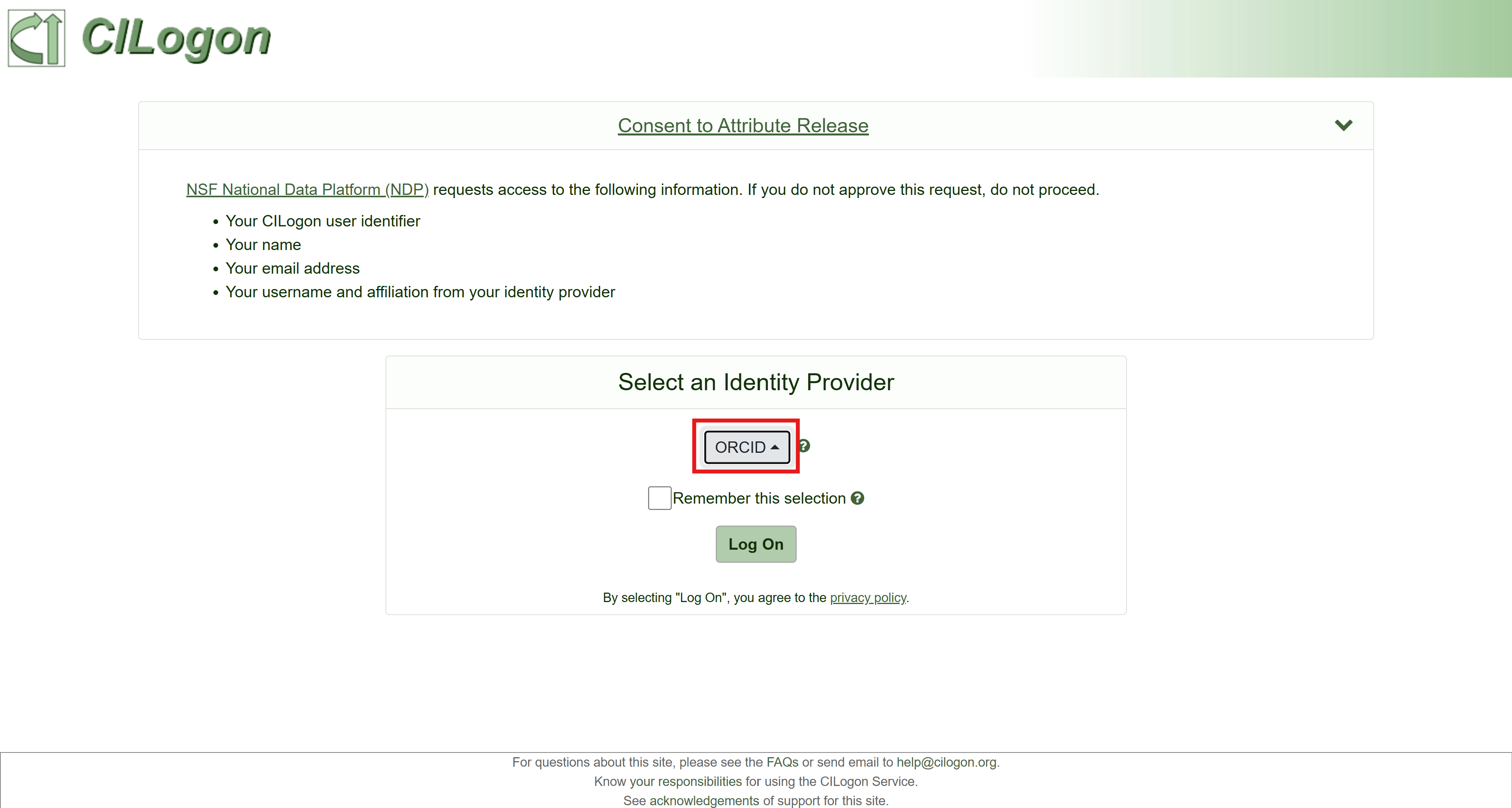
Sign in using your ORCID. If you don’t have one, you can create one here.
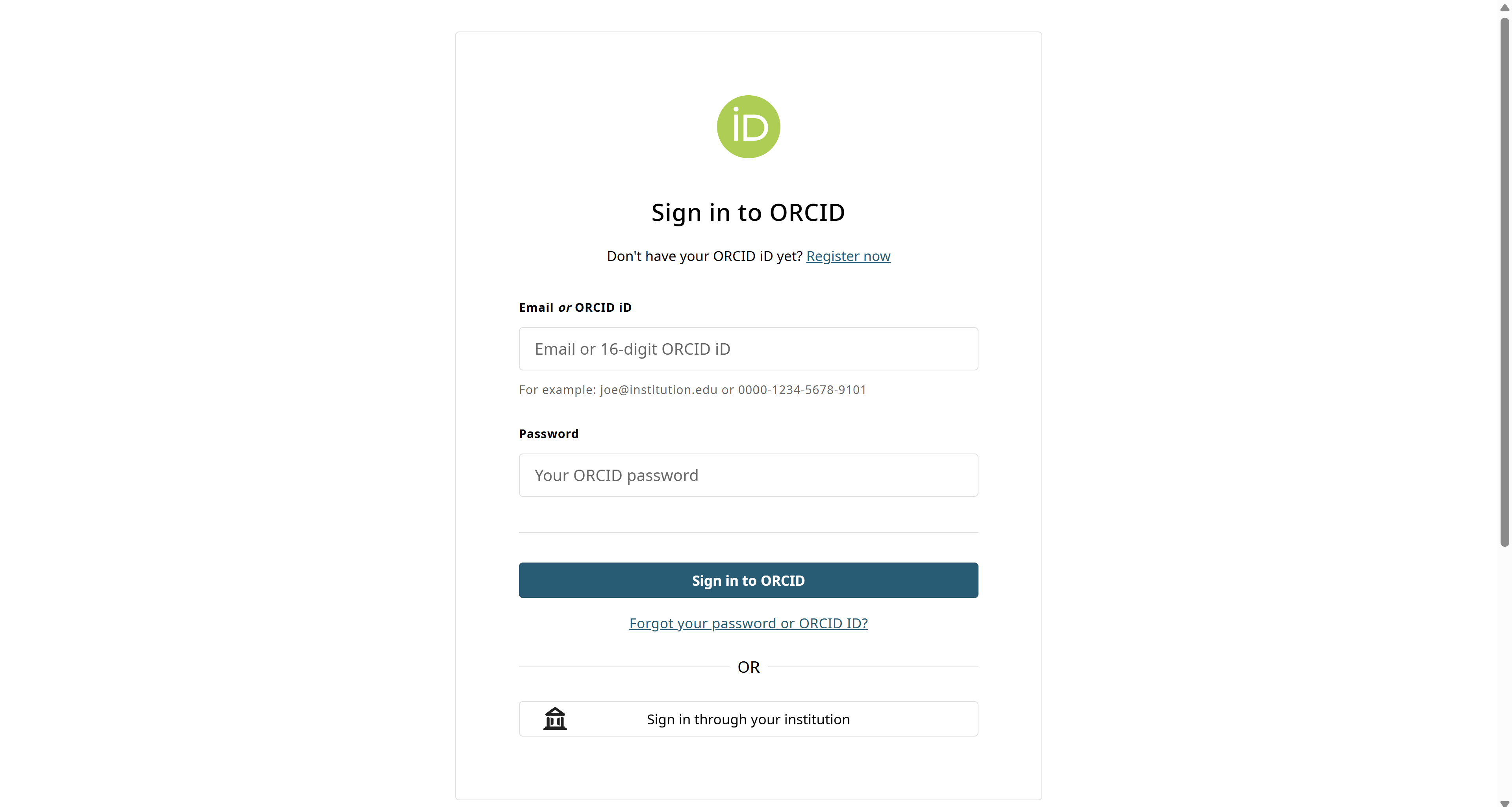
As a final alternative, you may register through CILogon using a commercial account (such as Google). Please be aware that this option restricts access to resources, including national computing.
Expert Network Profile
After a successful sign in, fill out your Expert Network Profile.
1 - On the main page, click on Home followed by Profile.
2 - Fill out the details of your profile including the expertise field in which you can select existing listed expertise or type in your own expertise. To add a new expertise type, click enter on your keyboard to add the new types.
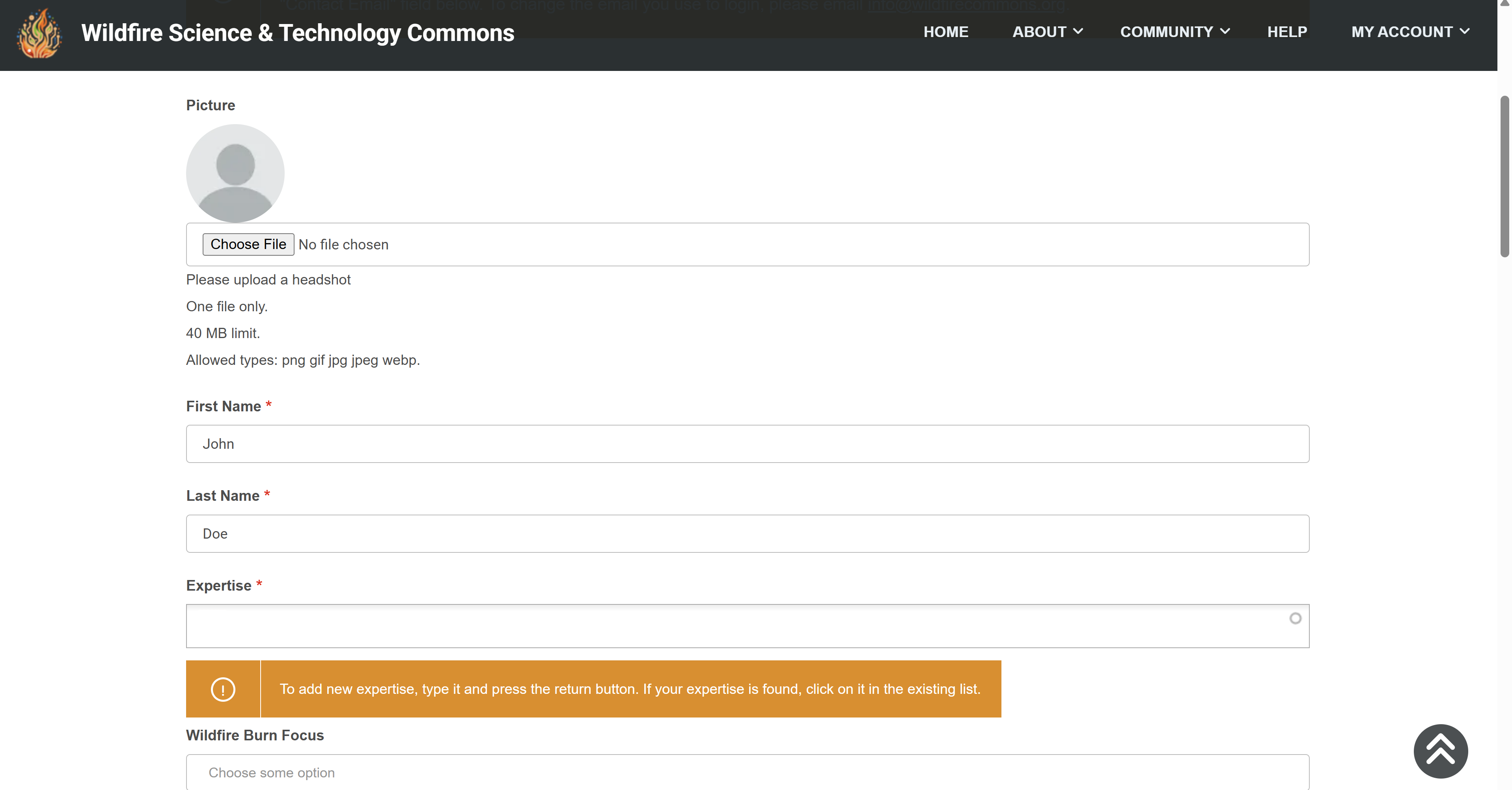
3 - Once you have established your Expert Network profile, click Save and navigate to the Catalog or FireForge to begin using the Wildfire Commons.
Info
By joining the Wildfire Commons you agree to the Community Code of Conduct.